
Published on: Feb 21, 2026
ZSH Configuration
Makover Linux terminal with ZSH. Configure ZSH with Auto-suggestions, substring history search or auto-completion, command syntax-highlight, and Git helpers with Powerlevel10k (p10k). Without using oh-my-zsh, manually install everything and customise.
Install ZSH
First, install ZSH and make it the default shell.
1$ sudo apt install zsh -y
2
After it is installed, you can try switching from bash to zsh by simply using the command zsh
1$ zsh
2
To make ZSH the default shell,
1$ sudo chsh -s $(which zsh)
2
Now, ZSH is the default shell. Verify this by exiting the terminal and opening it again.
Check the ~/.zshrc file if it exists, and open the configuration. This is the ZSH configuration file that we will customise later. This is the same as ~/.bashrc and should include all the ENV, Path, and other exports.
ZSH Auto-suggestions
ZSH Auto-suggestions suggests the full commands while typing based on the previous history. It's useful for quickly typing full complex commands that you used previously, like git, system, and other commonly used commands.
1$ git clone --depth=1 https://github.com/zsh-users/zsh-autosuggestions ~/.zsh/zsh-autosuggestions
2
This will clone the repo to the destination folder under the ~/.zsh folder. All ZSH-related plugins and installations can be placed here for future reference and easy management.
Open the ~/.zshrc file and add ZSH Auto-suggestions source for the ZSH to load this plugin while the terminal boots.
~/.zshrc
1# Add ZSH Auto-suggestion plugin 2source ~/.zsh/zsh-autosuggestions/zsh-autosuggestions.zsh 3
Now save the file. To see the changes, either close and open the ZSH terminal or hit source ~/.zshrc.
If you type any command, the terminal will suggest the full command based on the history.
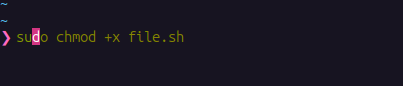
For some terminals, the suggested text may not be visible due to different color settings. Set the text color for auto-suggestions text in ~/.zshrc file after the above source as
~/.zshrc
1# Autosuggestion highlight color 2ZSH_AUTOSUGGEST_HIGHLIGHT_STYLE="fg=100" 3
In the above setting, value fg=100 is for setting the foreground color to value 100. ZSH color codes range from 0 to 255, and each value denotes a different color. To compare and set which color looks good for your terminal color settings, use this command that lists all colors in your terminal and how they look.
1$ for i in {0..255}; do print -Pn "%K{$i}  %k%F{$i}${(l:3::0:)i}%f " ${${(M)$((i%6)):#3}:+$'\n'}; done
2
ZSH Auto-completion or Sub-string search
Let's say you have a ton of commands and want to search through history for all matched commands given the current command. Like when you type a command like apt install and hit all the matches starting with apt install.
Type any command, navigate through all matched commands with UP/DOWN arrow with ZSH Sub-string Search.

In the above example, I can search all the previous commands that I used that start with sudo apt.
Install the source and add it to ~/.zshrc
1$ git clone --depth=1 https://github.com/zsh-users/zsh-history-substring-search ~/.zsh/zsh-substring-search
2
~/.zshrc
1# ZSH Sub-string search 2source ~/.zsh/zsh-history-substring-search/zsh-history-substring-search.zsh 3
You may not observe the substring search yet with UP/DOWN arrows, because we need to bind UP/DOWN arrows as keyboard shortcuts for up/down search and forward/backward movement. Refer this auto-completion section to know which character combination to use as shortcuts for your system.
These are the bind keys for my system that I should use for searching and left/right cursor movements.
~/.zshrc
1# autocompletion using arrow keys (based on history) 2bindkey "$terminfo[kcuu1]" history-substring-search-up 3bindkey "$terminfo[kcud1]" history-substring-search-down 4bindkey "$terminfo[kLFT5]" backward-word 5bindkey "$terminfo[kRIT5]" forward-word 6
These settings should be placed after the source listing of the substring search plugin in ~/.zshrc.
ZSH Syntax-highlight
Highlight the command syntax with different colors. This helps in identifying unknown commands, options, sub-commands...
Install ZSH Syntax highlight and add it to ~/.zshrc
1$ git clone --depth=1 https://github.com/zsh-users/zsh-syntax-highlighting ~/.zsh/zsh-syntax-highlighting
2
~/.zshrc
1# ZSH Syntax-highlighting 2source ~/.zsh/zsh-syntax-highlighting/zsh-syntax-highlighting.zsh 3
Powerlevel10k (p10k)
Powerlevel10k(p10k) is a ZSH prompt plugin that changes how the terminal looks. It gives flexibility to change color theme, prompt style, and also adds git support to the terminal like showing current branch, status info and others.
Install the plugin and add it to ~/.zshrc
1$ git clone --depth=1 https://github.com/romkatv/powerlevel10k.git ~/.zsh/powerlevel10k
2
~/.zshrc
1source ~/.zsh/powerlevel10k/powerlevel10k.zsh-theme 2
Once you load the ZSH terminal for the first time, p10k prompts you for configuration for terminal look, prompt style, icon support, and others. Set the style of your choice. After you set the config, p10k edits the ~/.zshrc for new settings.
You can edit the p10k manually by modifying the ~/.p10k.zsh file.
I have selected pure prompt style, and this is how it will look like at first.
If you set any other style, ~/.p10k.zsh file will look different.
Add Git Plugin
One of the best features of p10k is its git support. In the prompt, we can see the git info like current branch, files modified, commits ahead/behind, stash, etc. And, we can change the look and feel of these icons also, like below

Pure style doesn't come with a proper git status prompt. We can take the git function from classic config and add this to the pure p10k config.
1  function my_git_formatter() {
2    emulate -L zsh
3
4    if [[ -n $P9K_CONTENT ]]; then
5      # If P9K_CONTENT is not empty, use it. It's either "loading" or from vcs_info (not from
6      # gitstatus plugin). VCS_STATUS_* parameters are not available in this case.
7      typeset -g my_git_format=$P9K_CONTENT
8      return
9    fi
10
11    if (( $1 )); then
12      # Styling for up-to-date Git status.
13      local       meta='%248F'
14      local      clean='%253F'
15      local   modified='%50F'
16      local  untracked='%226F'
17      local conflicted='%196F'
18      local commits_ahead='%4F'
19      local commits_behind='%4F'
20      local stash='%125F'
21    else
22      # Styling for incomplete and stale Git status.
23      local       meta='%244F'
24      local      clean='%244F'
25      local   modified='%244F'
26      local  untracked='%244F'
27      local conflicted='%244F'
28      local commits_ahead='%244F'
29      local commits_behind='%244F'
30      local stash='%244F'
31    fi
32
33    local res
34
35    if [[ -n $VCS_STATUS_LOCAL_BRANCH ]]; then
36      local branch=${(V)VCS_STATUS_LOCAL_BRANCH}
37      # If local branch name is at most 32 characters long, show it in full.
38      # Otherwise show the first 12 … the last 12.
39      # Tip: To always show local branch name in full without truncation, delete the next line.
40      (( $#branch > 32 )) && branch[13,-13]="…"  # <-- this line
41      res+="${clean}${(g::)POWERLEVEL9K_VCS_BRANCH_ICON}${branch//\%/%%}"
42    fi
43
44    if [[ -n $VCS_STATUS_TAG
45          # Show tag only if not on a branch.
46          # Tip: To always show tag, delete the next line.
47          && -z $VCS_STATUS_LOCAL_BRANCH  # <-- this line
48        ]]; then
49      local tag=${(V)VCS_STATUS_TAG}
50      # If tag name is at most 32 characters long, show it in full.
51      # Otherwise show the first 12 … the last 12.
52      # Tip: To always show tag name in full without truncation, delete the next line.
53      (( $#tag > 32 )) && tag[13,-13]="…"  # <-- this line
54      res+="${meta}#${clean}${tag//\%/%%}"
55    fi
56
57    # Display the current Git commit if there is no branch and no tag.
58    # Tip: To always display the current Git commit, delete the next line.
59    [[ -z $VCS_STATUS_LOCAL_BRANCH && -z $VCS_STATUS_TAG ]] &&  # <-- this line
60      res+="${meta}@${clean}${VCS_STATUS_COMMIT[1,8]}"
61
62    # Show tracking branch name if it differs from local branch.
63    if [[ -n ${VCS_STATUS_REMOTE_BRANCH:#$VCS_STATUS_LOCAL_BRANCH} ]]; then
64      res+="${meta}:${clean}${(V)VCS_STATUS_REMOTE_BRANCH//\%/%%}"
65    fi
66
67    # Display "wip" if the latest commit's summary contains "wip" or "WIP".
68    if [[ $VCS_STATUS_COMMIT_SUMMARY == (|*[^[:alnum:]])(wip|WIP)(|[^[:alnum:]]*) ]]; then
69      res+=" ${modified}wip"
70    fi
71
72    if (( VCS_STATUS_COMMITS_AHEAD || VCS_STATUS_COMMITS_BEHIND )); then
73      # ⇣42 if behind the remote.
74      (( VCS_STATUS_COMMITS_BEHIND )) && res+=" ${commits_behind}⇣${VCS_STATUS_COMMITS_BEHIND}"
75      # ⇡42 if ahead of the remote; no leading space if also behind the remote: ⇣42⇡42.
76      (( VCS_STATUS_COMMITS_AHEAD && !VCS_STATUS_COMMITS_BEHIND )) && res+=" "
77      (( VCS_STATUS_COMMITS_AHEAD  )) && res+="${commits_ahead}⇡${VCS_STATUS_COMMITS_AHEAD}"
78    elif [[ -n $VCS_STATUS_REMOTE_BRANCH ]]; then
79      # Tip: Uncomment the next line to display '=' if up to date with the remote.
80      # res+=" ${clean}="
81    fi
82
83    # ⇠42 if behind the push remote.
84    (( VCS_STATUS_PUSH_COMMITS_BEHIND )) && res+=" ${commits_behind}⇠${VCS_STATUS_PUSH_COMMITS_BEHIND}"
85    (( VCS_STATUS_PUSH_COMMITS_AHEAD && !VCS_STATUS_PUSH_COMMITS_BEHIND )) && res+=" "
86    # ⇢42 if ahead of the push remote; no leading space if also behind: ⇠42⇢42.
87    (( VCS_STATUS_PUSH_COMMITS_AHEAD  )) && res+="${commits_ahead}⇢${VCS_STATUS_PUSH_COMMITS_AHEAD}"
88    # *42 if have stashes.
89    (( VCS_STATUS_STASHES        )) && res+=" ${stash}*${VCS_STATUS_STASHES}"
90    # 'merge' if the repo is in an unusual state.
91    [[ -n $VCS_STATUS_ACTION     ]] && res+=" ${conflicted}${VCS_STATUS_ACTION}"
92    # ~42 if have merge conflicts.
93    (( VCS_STATUS_NUM_CONFLICTED )) && res+=" ${conflicted}~${VCS_STATUS_NUM_CONFLICTED}"
94    # +42 if have staged changes.
95    (( VCS_STATUS_NUM_STAGED     )) && res+=" ${modified}+${VCS_STATUS_NUM_STAGED}"
96    # !42 if have unstaged changes.
97    (( VCS_STATUS_NUM_UNSTAGED   )) && res+=" ${modified}!${VCS_STATUS_NUM_UNSTAGED}"
98    # ?42 if have untracked files. It's really a question mark, your font isn't broken.
99    # See POWERLEVEL9K_VCS_UNTRACKED_ICON above if you want to use a different icon.
100    # Remove the next line if you don't want to see untracked files at all.
101    (( VCS_STATUS_NUM_UNTRACKED  )) && res+=" ${untracked}${(g::)POWERLEVEL9K_VCS_UNTRACKED_ICON}${VCS_STATUS_NUM_UNTRACKED}"
102    # "─" if the number of unstaged files is unknown. This can happen due to
103    # POWERLEVEL9K_VCS_MAX_INDEX_SIZE_DIRTY (see below) being set to a non-negative number lower
104    # than the number of files in the Git index, or due to bash.showDirtyState being set to false
105    # in the repository config. The number of staged and untracked files may also be unknown
106    # in this case.
107    (( VCS_STATUS_HAS_UNSTAGED == -1 )) && res+=" ${modified}─"
108
109    typeset -g my_git_format=$res
110  }
111  functions -M my_git_formatter 2>/dev/null
112
113  # Don't count the number of unstaged, untracked and conflicted files in Git repositories with
114  # more than this many files in the index. Negative value means infinity.
115  #
116  # If you are working in Git repositories with tens of millions of files and seeing performance
117  # sagging, try setting POWERLEVEL9K_VCS_MAX_INDEX_SIZE_DIRTY to a number lower than the output
118  # of `git ls-files | wc -l`. Alternatively, add `bash.showDirtyState = false` to the repository's
119  # config: `git config bash.showDirtyState false`.
120  typeset -g POWERLEVEL9K_VCS_MAX_INDEX_SIZE_DIRTY=-1
121
122  # Don't show Git status in prompt for repositories whose workdir matches this pattern.
123  # For example, if set to '~', the Git repository at $HOME/.git will be ignored.
124  # Multiple patterns can be combined with '|': '~(|/foo)|/bar/baz/*'.
125  typeset -g POWERLEVEL9K_VCS_DISABLED_WORKDIR_PATTERN='~'
126
127  # Disable the default Git status formatting.
128  typeset -g POWERLEVEL9K_VCS_DISABLE_GITSTATUS_FORMATTING=true
129  # Install our own Git status formatter.
130  typeset -g POWERLEVEL9K_VCS_CONTENT_EXPANSION='${$((my_git_formatter(1)))+${my_git_format}}'
131  typeset -g POWERLEVEL9K_VCS_LOADING_CONTENT_EXPANSION='${$((my_git_formatter(0)))+${my_git_format}}'
132  # Enable counters for staged, unstaged, etc.
133  typeset -g POWERLEVEL9K_VCS_{STAGED,UNSTAGED,UNTRACKED,CONFLICTED,COMMITS_AHEAD,COMMITS_BEHIND}_MAX_NUM=-1
134
135  # Untracked Icon
136  typeset -g POWERLEVEL9K_VCS_UNTRACKED_ICON='?'
137
138  # Icon color.
139  typeset -g POWERLEVEL9K_VCS_VISUAL_IDENTIFIER_COLOR=76
140  typeset -g POWERLEVEL9K_VCS_LOADING_VISUAL_IDENTIFIER_COLOR=244
141
I have edited colors and changed config little. Add this block to you local ~/.p10k.zsh file and check the git prompt style.
After configuring the plugins and zshrc, these are the final config files
ZSH supports tons of plugins that help users with day-to-day tasks. Instead of manually adding those plugins, use oh-my-zsh for ZSH that natively comes with more themes, styles, and other configs.